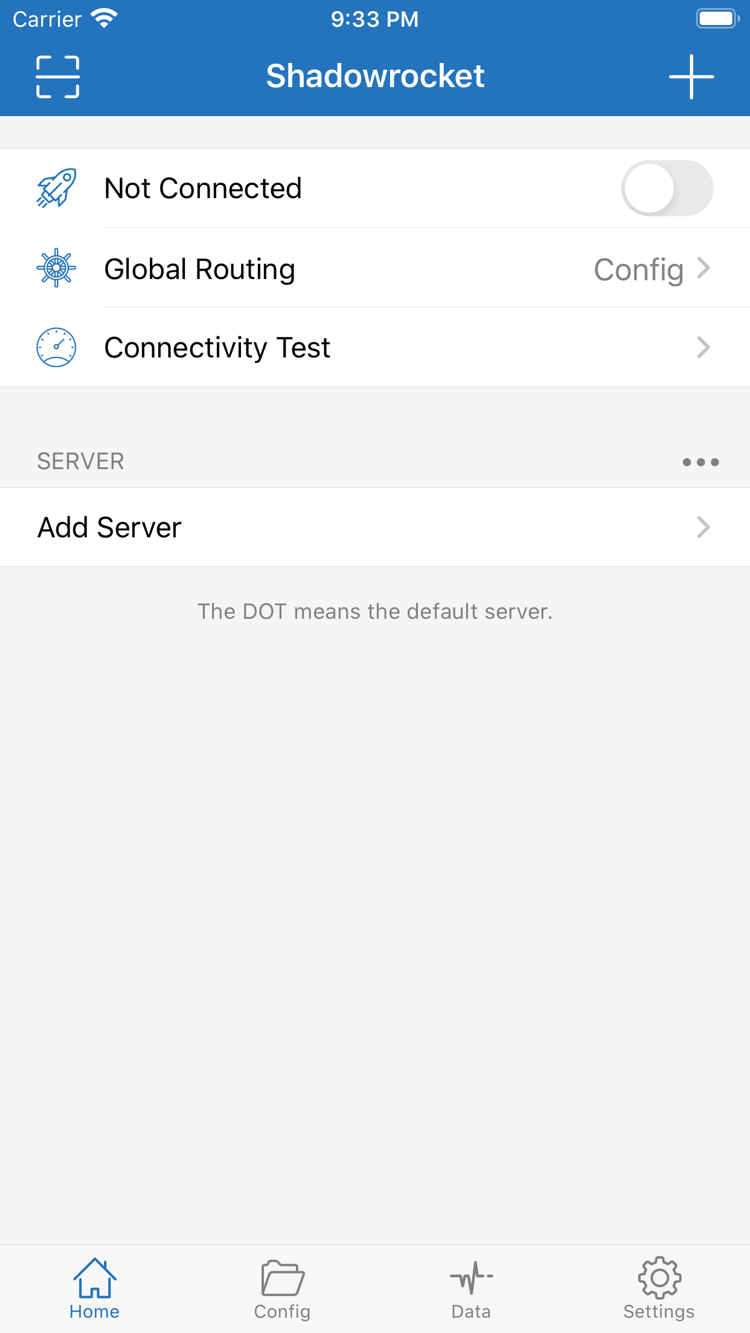
Shadowrocket Home · Official screenshot; the current version may differ
Shadowrocket features and settingsTell rules, servers, and the connection switch apart
These six topics cover routing, automatic connections, protocol settings, existing subscriptions, configuration files, and testing. Choose the section that matches what you’re doing. Example domains illustrate formatting only; they are not working services.
Rules: Match targets in order
Rules determine which policy applies to a request; they do not provide servers. To use rule-based routing, choose Config under Global Routing on Home, then confirm that Config has the intended file enabled. Rules are checked from top to bottom, and the policy for the first match applies. Put specific domain exceptions before broad suffix rules. DOMAIN-SUFFIX matches by domain suffix, IP-CIDR matches an address range, and FINAL catches requests that did not match earlier rules. After making changes, check the results against your request logs. The connection switch alone cannot tell you whether the rules are correct.
On Demand triggers the system VPN connection when its configured conditions are met. It’s useful when you want to connect automatically on specific networks. First confirm that a manual connection works and verify access, then check the On Demand conditions and enabled status in Settings. If the connection starts again after you turn off the switch on Home, check this setting instead of repeatedly deleting servers. Automatic connection changes when the connection starts; it cannot fix incorrect protocol settings or replace rule-based routing. After changing the conditions, check whether they trigger on the networks you actually use.
Settings
On Demand
Home
Protocols: Match Type to your existing details
Shadowrocket supports protocols including Shadowsocks, VMess, VLESS, Trojan, HTTP, SOCKS5, WireGuard, and Hysteria2. To add a server manually, start by choosing a Type in Add Server, then fill in the corresponding fields using your existing server details. Required authentication, encryption, and transport settings vary by Type; changing only Host and Port does not make two configurations equivalent. After importing, check the protocol type and required settings. Refer to the current app interface for the fields available. A protocol name describes a connection method; it does not guarantee that a server is reachable.
Shadowsocks / VMess / VLESS / Trojan
HTTP / SOCKS5 / WireGuard / Hysteria2
Add Server → Type
Subscribe: Manage your existing subscription
Importing a subscription requires a subscription URL that you already own. In Add Server, choose the relevant Type and enter the URL, using a recognizable name to identify it. After saving, check that the expected entry appears under SERVER. Refreshing a subscription retrieves its server list; updating the app through the App Store and updating rules in Config are separate actions. If the URL has expired or the list is empty, first check that the link is complete, then confirm that your existing subscription is active. Subscription URLs may contain access credentials. Hide sensitive parameters when troubleshooting, and never post the full URL in a public record.
Add Server
Type: Subscribe
URL: https://example.com/sub?token=xxxx
Config: Confirm which configuration is active
Config is where you manage configuration files and check their rules and related settings. Editing a file and selecting the active file are separate steps: save your changes, confirm that the file is in use, then choose Config under Global Routing. The app supports iCloud-related syncing. Check the in-app options, system iCloud status, and actual contents on the target device; syncing does not guarantee that all data has been restored. Keep a recoverable copy before editing. Change a small number of rules at a time and verify the results to make troubleshooting easier.
Connectivity Test: Check test results and access separately
Connectivity Test on Home checks the connection performance of an existing server. You can also check the Test Method in Settings. Results depend on the current network, test method, and target response, so a test alone cannot prove that every site is accessible. First confirm the selected server, then connect and try a specific destination. If the results differ, check the rules, protocol settings, and system time. Traffic statistics in Data can help show whether traffic is flowing, but an increase does not mean the request reached its destination. Consider the test, actual access, and logs together.
Home → Connectivity Test
Settings → Test Method
Data
Global Routing: What Config, Proxy, and Direct control
Config uses the selected configuration: requests follow its rules, which is useful when different destinations need different policies. Proxy sends requests through the selected proxy: use it to check how an existing server handles access. Direct uses a direct connection. These are routing modes, not protocol types; changing Global Routing does not change server settings. For everyday rule-based routing, check both that Config is selected and that the intended configuration file is active—having a file available is not enough.
During troubleshooting, treat routing mode as a separate variable. First check whether the server itself works, then see how a destination matches under Config. If access works under Proxy but fails under Config, check rule order and policies. If it fails in every mode, start with the network and server details. Change one setting at a time and record the result so a temporary network change is not mistaken for the effect of a rule.
Getting Shadowrocket on iPhone and iPadCheck purchase history, compatibility, and first-use authorization separately
iPhone
Check the product identity, price, and compatibility in the App Store, then follow the system prompts to complete your purchase. The first time you connect, the system may ask to add a VPN configuration. This authorization is required for the client to establish a system connection; it does not confirm that a server is available.
After installation, open Home and locate the connection switch, Global Routing, Connectivity Test, and SERVER. If SERVER does not yet contain your server details, import them before connecting. Check the App Store listing for system requirements. For the recommended first-time setup sequence, see the user guide.
You can use purchase history under the same Apple ID to get the app on iPhone and iPad. Check the App Store listing for purchase eligibility and compatibility. First confirm which account is being used for purchases in the App Store, then look for the app in your purchased items. Do not treat the status of another account on your device as proof of an App Store purchase.
On iPad, use interface sections such as Home, Config, and Settings to complete the same setup tasks. The layout may vary; follow what appears in the app. After restoring the app, check your servers, active configuration, and system authorization. Seeing the app icon does not mean connection settings from another device have all been transferred.
Shadowrocket is also available on Mac and Apple TV through the same App Store. Check the App Store listing for system requirements and purchase eligibility.
Shadowrocket quick-start sequenceImport existing details, choose a mode, then test the connection
Step 01 · Add Server
Add a server or subscription
Have your existing server settings, subscription URL, or QR code ready. To enter details manually, choose a Type first, then fill in the corresponding fields. To scan a code, use Scan QR Code. After importing, check the name, protocol, and address under SERVER; entries with the same display name are not necessarily the same server.
A successful save means the entry was added. You still need to test it and verify access.
Step 02 · Global Routing
Choose a routing mode
For rule-based routing, choose Config and check the active configuration. To check a server’s access performance on its own, temporarily choose Proxy, then switch back to your original setting. Distinguish Direct from DIRECT in a rule: the former is a global mode, while the latter is the policy for an individual rule.
The server determines where the connection goes; the configuration determines how each request is handled.
Step 03 · Home
Connect and verify
Select a server, turn on the connection switch on Home, and follow the system prompts to authorize the VPN configuration. Then visit a specific destination and check whether the result is as expected. Use Connectivity Test as an additional check. If the switch is on but the destination is unreachable, check the settings and rules rather than rebuilding the entire configuration.
Connection status, test results, and actual access are three different kinds of evidence.
For your first setup, follow a clear path you can verify
Before you’ve verified a server, don’t import multiple configurations, change On Demand, and rewrite rules all at once. Start with one existing server. Check its Type and authentication fields, make a manual connection, then return to Config and verify how a destination is routed. If something goes wrong, you can tell whether the imported details are incomplete, the server is unreachable, or the active rules are applying a different policy.
If Connectivity Test shows timeout, first check that your current network can reach basic services. Then verify Host, Port, protocol settings, and system time. If the test gets a response but the destination still won’t load, check actual access and the current routing mode; a test response alone does not prove the connection works end to end. For step-by-step instructions on entering settings, authorizing the VPN, and checking failure points, see the tutorial page.
Verify the App Store listing and purchase detailsConfirm the product identity, then distinguish the app purchase from connection services
DeveloperShadow Launch Technology Limited
App ID932747118
One-time purchase
Verify the app using three details: developer, official icon, and app ID
To verify Shadowrocket, use its full product name and App Store listing. Open the App Store product page linked from the verification guide. Confirm that the developer is Shadow Launch Technology Limited, compare the product icon with the official icon in this site’s header, then check for id932747118 in the product page URL. The app name or a search result thumbnail alone is not enough to verify all three details.
The app ID identifies the specific product, the developer name identifies its publisher, and the official icon provides a visual reference. Check all three rather than relying on just one. If search results show similar names, return to the exact product page before reviewing its price, compatibility, and purchase details. Shadowrocket is a closed-source commercial app; get and update it through the App Store.
App Store availability: Check your current storefront
Whether the product appears in search results depends on your current App Store storefront. The region of a product page opened in a browser may differ from the storefront used by the purchasing account on your device. If the page is visible but you cannot complete the purchase, check the country or region of your App Store account, purchase prompts, and device compatibility. A region code in a web address does not mean your account settings have changed.
Use your own Apple ID to check your account status in Settings and the App Store. Changes to your storefront region may depend on your account’s purchase conditions; follow the system prompts and avoid changing settings repeatedly just to search again. If you can’t find the app, check the product name, whether it’s hidden in your purchased items, and any device restrictions. For details on storefront availability, purchase conditions, and common prompts, see the App Store guide.
What a one-time purchase covers: The app and connection services are separate
The US storefront lists the app at about $2.99 as a one-time purchase; other storefronts show local currency. The actual amount is shown on the App Store product page and purchase confirmation. A one-time purchase applies to the client app; you do not buy it again each time you connect. Check the price, system requirements, and compatibility again before buying, as App Store terms can change.
If SERVER is empty when you first open the app, use Add Server or import your existing subscription details. Completing a purchase does not automatically populate the server list. The client’s protocols, rules, and diagnostic tools work with connections that have already been configured. Check the status of your existing subscription, server address, and authentication details against your own information source. Keeping these steps separate helps determine whether an issue is about restoring a purchase or configuring a connection.
Purchases and recovery: Restore the app, then check your settings
You can use purchase history under the same Apple ID to get Shadowrocket on iPhone and iPad. Check the App Store listing for purchase eligibility. When switching devices or reinstalling, first make sure the App Store is signed in with the account that made the original purchase, then find the app in your purchased items and restore it. If the app still shows a price, pause and check the account, storefront, purchase history, and hidden items. Seeing a price again does not automatically mean you need to pay again.
Restoring the app and restoring your setup are separate processes. After reopening it, check SERVER, the active Config, Global Routing, and VPN authorization one by one. Even if iCloud syncing is enabled, verify the result on the target device rather than assuming every setting has transferred. Family Sharing eligibility and purchase restrictions depend on the App Store product page and system prompts. For more details, see Restore a previous purchase.
Updates and records: Know which of the three actions you took
An App Store update changes the app itself. A subscription refresh retrieves the server list from an existing subscription. Editing or updating a file in Config changes rules and configuration. These actions affect different things. If a connection stops working, first identify which action you recently took, then check the relevant content. If entries change after a subscription refresh, check the selected server. If a destination takes a different route after a configuration change, check rule order and policies.
Traffic statistics in Data can be useful, but they cannot replace testing access to a destination and are not proof of an app purchase. When troubleshooting, note your current network, selected Type, Global Routing mode, test method, and what happened at the destination. Hide passwords and sensitive subscription details before sharing screenshots or text publicly. A clear description of the settings is more useful than simply saying “can’t connect.”
Three common checks for first-time setup
Why check Config if the Home switch is on?
The switch shows connection status; it does not confirm that a destination is using the intended policy. With Config selected under Global Routing, also check the active file, rule order, and matching policy. First see whether an earlier entry matches the destination, then make changes. For detailed steps, see the user guide.
What should I check after importing a subscription?
First, check that the expected entries appear under SERVER, then verify the selected server and its Type. A server import URL and a configuration file URL serve different purposes and cannot be used interchangeably. If the list is empty, check that the URL is complete and that your existing subscription is active rather than repeatedly toggling the connection switch. Review the import steps to check your setup.
The connection starts again after I turn it off. Where should I start?
In Settings, check whether On Demand is enabled and review its conditions. See whether the current situation matches the automatic connection criteria. Automatic triggering and server availability are separate issues, so test them separately. After making a change, check again on the network you actually use. Follow the connection and verification guide, changing one thing at a time.
Shadowrocket setup and troubleshooting logFocus on specific fields, matching targets, and failure points
If an existing server shows timeout, first distinguish a failed test from failed access. Check the network, test method, protocol fields, system time, and routing settings one by one. Record a clear observation at each step instead of rewriting the configuration all at once.
Starting with the Type selector in Add Server, this guide explains how common protocols differ in their settings. The goal is to match the client fields to your existing details and distinguish authentication, encryption, and transport options—not to infer connection quality from a protocol name.
This guide covers subscription refreshes, switching configurations, Global Routing, automatic connections, and restoring the app on a new device. It points you to the right settings first, then explains what each action affects, bringing common first-time questions back to a clear setup and verification process.